> ## Documentation Index
> Fetch the complete documentation index at: https://paxos-0ac97319-jg-test-1.mintlify.site/llms.txt
> Use this file to discover all available pages before exploring further.
# Manage Team
> Manage user access and roles within your Entity.
Any user accessing the Paxos Dashboard must be authorized and assigned one or more [Roles](https://dashboard.paxos.com/admin/team-management/roles), each of which consists of specific permissions that control access to various actions. Paxos provides a set of [predefined roles](https://dashboard.paxos.com/admin/team-management/roles) that are available as soon as you [sign up](/guides/dashboard/account) and onboard a new Entity.
* To view, search and manage user access: [Admin > Team Management > Users](https://dashboard.paxos.com/admin/team-management/users).
* To audit the list of permissions associated with a Role: [Admin > Team Management > Roles](https://dashboard.paxos.com/admin/team-management/roles)
* To disable user access or change Roles, use the Edit Status dropdown in the User Actions menu at [Admin > Team Management > Users](https://dashboard.paxos.com/admin/team-management/users).
## Passkey-Based Login
**Demo**
[Entity Managers](/guides/dashboard/roles#entity-manager) can manually invite users and assign their roles. Each user receives an email with a verification code and a link to [set up their passkey and sign in](/guides/dashboard/signin#passkey).
Users can have different [roles](/guides/dashboard/roles) across different [Entities](/guides/dashboard/organization#entity).
When inviting users, it is recommended to provide organization-specific instruction on the proper use and storage of [passkeys](https://www.passkeys.com/what-are-passkeys).
We recommend using tools like [iCloud Keychain](https://support.apple.com/guide/passwords/passkeys-mchl4af65d1a/mac), [Windows Hello](https://support.microsoft.com/en-us/account-billing/signing-in-with-a-passkey-09a49a86-ca47-406c-8acc-ed0e3c852c6d#), [Google Account](https://support.google.com/chrome/answer/13168025), [1Password](https://support.1password.com/save-use-passkeys/), [Proton Pass](https://proton.me/support/pass-use-passkeys), or other third-party password manager that enables passkey sync across devices.
Follow these steps to invite users to your entity:
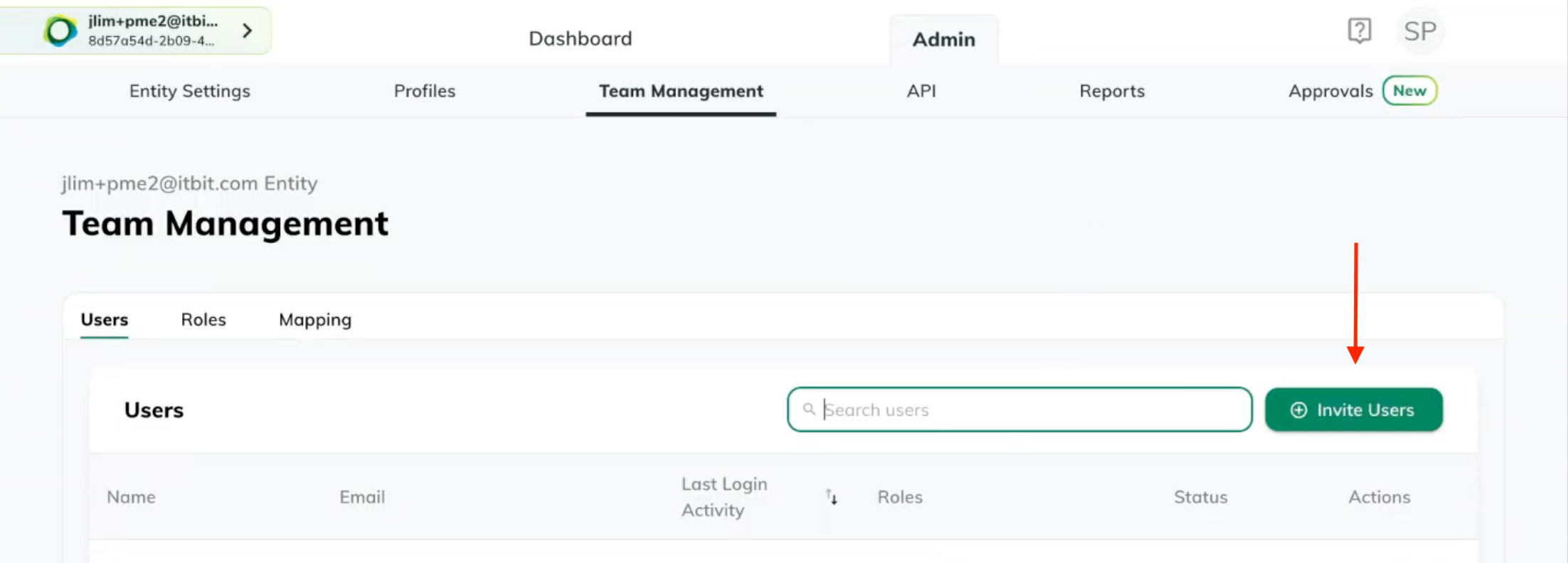
1. Go to [**Admin > Team Management**](https://dashboard.paxos.com/admin/team-management/users)
2. Click **Invite Users**
4. Enter one or more emails and select a role from the dropdown.
5. Click **Invite Users**
Users are marked as **Active** once they log into the Dashboard.
Entity Managers can also modify User Roles as needed:
1. Go to [**Admin > Team Management>Users**](https://dashboard.paxos.com/admin/team-management/users)
2. Click on the **Edit Role** icon next to a user.
3. Select one or more roles from the dropdown.
4. Click the **Save** icon next to the dropdown.
## SSO-Based Login
**Demo**
Interested in using SSO?
Paxos supports SAML and OIDC supported Identity Providers. Contact [Support](https://support.paxos.com) to get started.
When using [Single Sign-On (SSO)](#sso), instead of inviting users individually, an Entity Manager uses the [Role Mapping interface](https://dashboard.paxos.com/admin/team-management/mapping) to map Roles to user groups within your organization's Identity Provider (i.e., Okta, Azure AD).
Typically, you work with your IT team to leverage existing groups; however, you may need to add new Identity Provider groups to match your expected Dashboard workflows.
Once you map the group to an existing [Dashboard Role](/guides/dashboard/roles), the next time users [sign in with SSO](/guides/dashboard/signin#sso) their permissions will update.
Follow these steps to map Identity Provider groups to Paxos Dashboard Roles:
1. Go to [**Admin>Team Management>Mapping**](https://dashboard.paxos.com/admin/team-management/mapping).
2. Click **Add Mapping**.
3. Enter the Group Name exactly as it appears inside your Identity Provider's configuration.
4. Enter one or more Roles to associate with this Group.
Any user with a user attribute that contains the Group will automatically be assigned the associated Role on login.
 4. Enter one or more emails and select a role from the dropdown.
5. Click **Invite Users**
Users are marked as **Active** once they log into the Dashboard.
Entity Managers can also modify User Roles as needed:
1. Go to [**Admin > Team Management>Users**](https://dashboard.paxos.com/admin/team-management/users)
2. Click on the **Edit Role** icon next to a user.
3. Select one or more roles from the dropdown.
4. Click the **Save** icon next to the dropdown.
## SSO-Based Login
4. Enter one or more emails and select a role from the dropdown.
5. Click **Invite Users**
Users are marked as **Active** once they log into the Dashboard.
Entity Managers can also modify User Roles as needed:
1. Go to [**Admin > Team Management>Users**](https://dashboard.paxos.com/admin/team-management/users)
2. Click on the **Edit Role** icon next to a user.
3. Select one or more roles from the dropdown.
4. Click the **Save** icon next to the dropdown.
## SSO-Based Login