> ## Documentation Index
> Fetch the complete documentation index at: https://paxos-0ac97319-jg-test-1.mintlify.site/llms.txt
> Use this file to discover all available pages before exploring further.
# Redeem
> Deposit stablecoin and convert to USD. Transfer USD to your bank.
Redemption allows you to convert Paxos-issued stablecoins into USD and send the funds to your bank account.
Follow the steps below to complete this process using the **Convert** option in the Dashboard.
Watch a demo
Who can do this
Only users with the **Treasurer** role can redeem stablecoins. [View all roles and permissions](https://docs.paxos.com/dashboard/roles).
## What You'll Do
* Add a [**Fiat Account**](https://docs.paxos.com/dashboard/fiat).
* Convert a stablecoin to USD and transfer the funds to a bank account.
## Before you begin
Make sure you've deposited stablecoins via [**Dashboard > Deposit**](https://dashboard.paxos.com/actions/deposit) before starting a redemption.
### Requirements
* [A verified Paxos account](https://docs.paxos.com/dashboard/signin)
* A **Treasurer** role with the [required permissions](https://docs.paxos.com/dashboard/roles).
### Supported Stablecoins and Networks
| Asset | Supported Network |
| ----- | ----------------- |
| USDG | Ethereum, Solana |
| PYUSD | Ethereum, Solana |
| USDP | Ethereum |
## ➊ Add Fiat Account
Before you can redeem stablecoins, you need to add a [fiat account](https://docs.paxos.com/dashboard/fiat) in the Paxos Dashboard.
1. Go to the [Dashboard](https://dashboard.paxos.com/) > **Fiat Accounts**
2. Click **+ Fiat Account** in the top-right corner.
3. Select a network.
4. Enter account details.
5. Fill in recipient details.
6. Enter a mailing address.
7. Click **Save**.
Use the [Approvals](https://docs.paxos.com/dashboard/admin/approvals) functionality to require additional team members to review any new fiat accounts before they are saved. This avoids potential mistakes around incorrect information and adds an extra layer of security. **Only approved fiat accounts** can be used in the redemption process.
## ➋ Redeem Asset
1. Go to the [Dashboard](https://dashboard.paxos.com/) and click **Convert** in the top-right corner.
2. Select the **Asset** to redeem.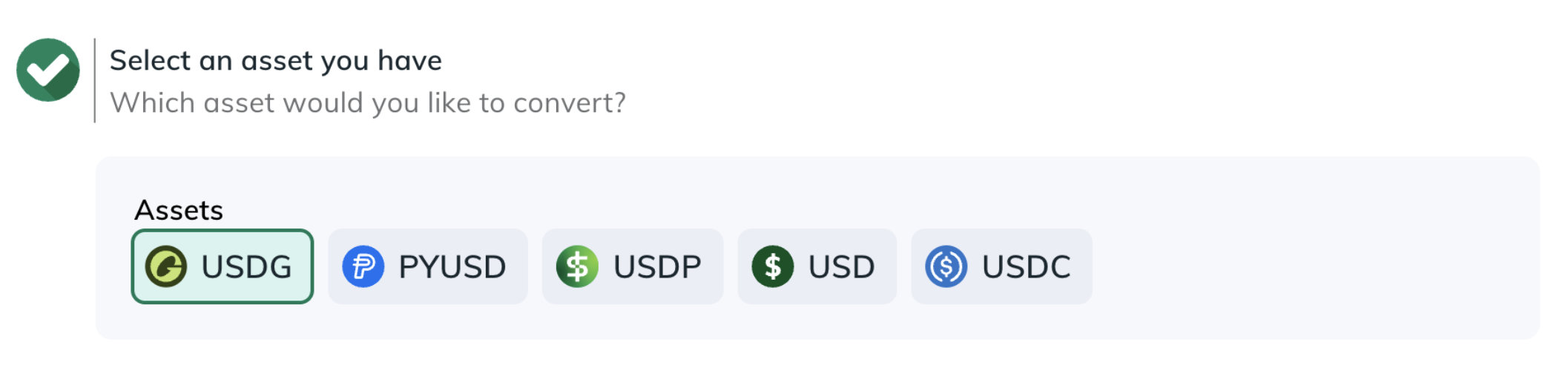
3. Choose the **Source** where the asset is located (a Profile or External Account/Wallet).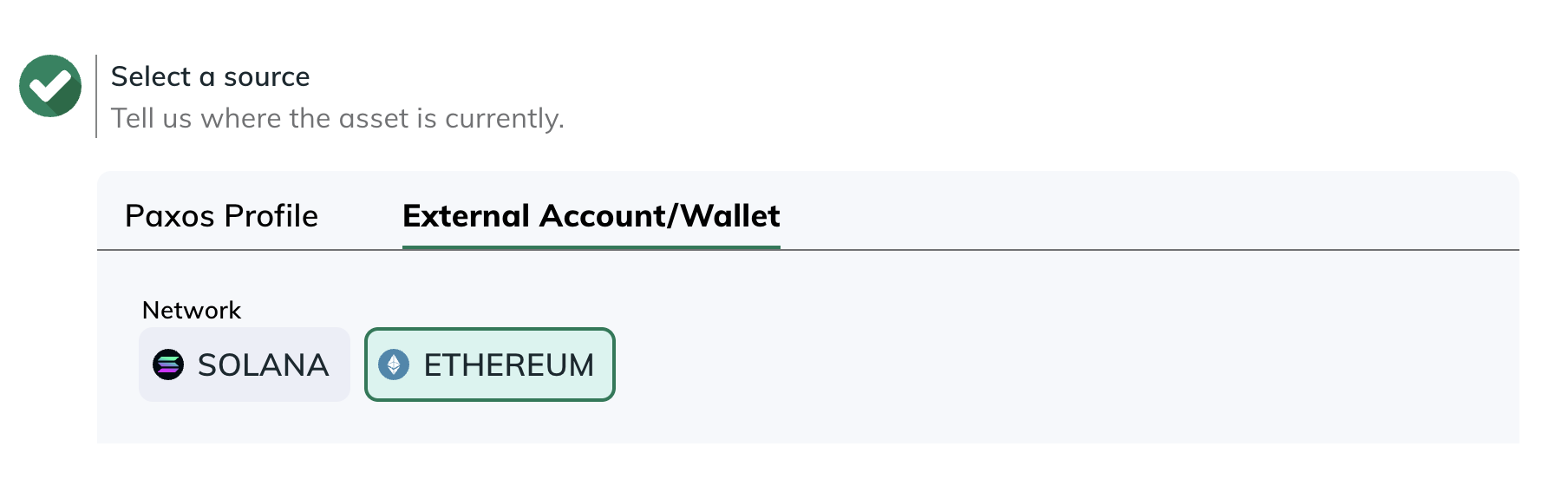
4. Select the **Asset** to receive.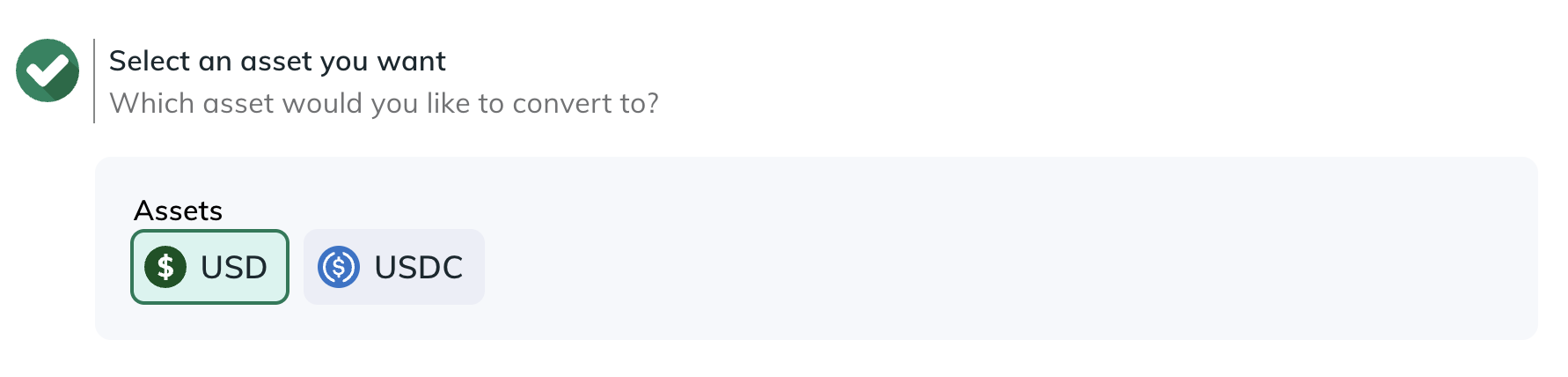
5. Choose the **Destination** where the converted asset should go (a Profile or an External Account/Wallet).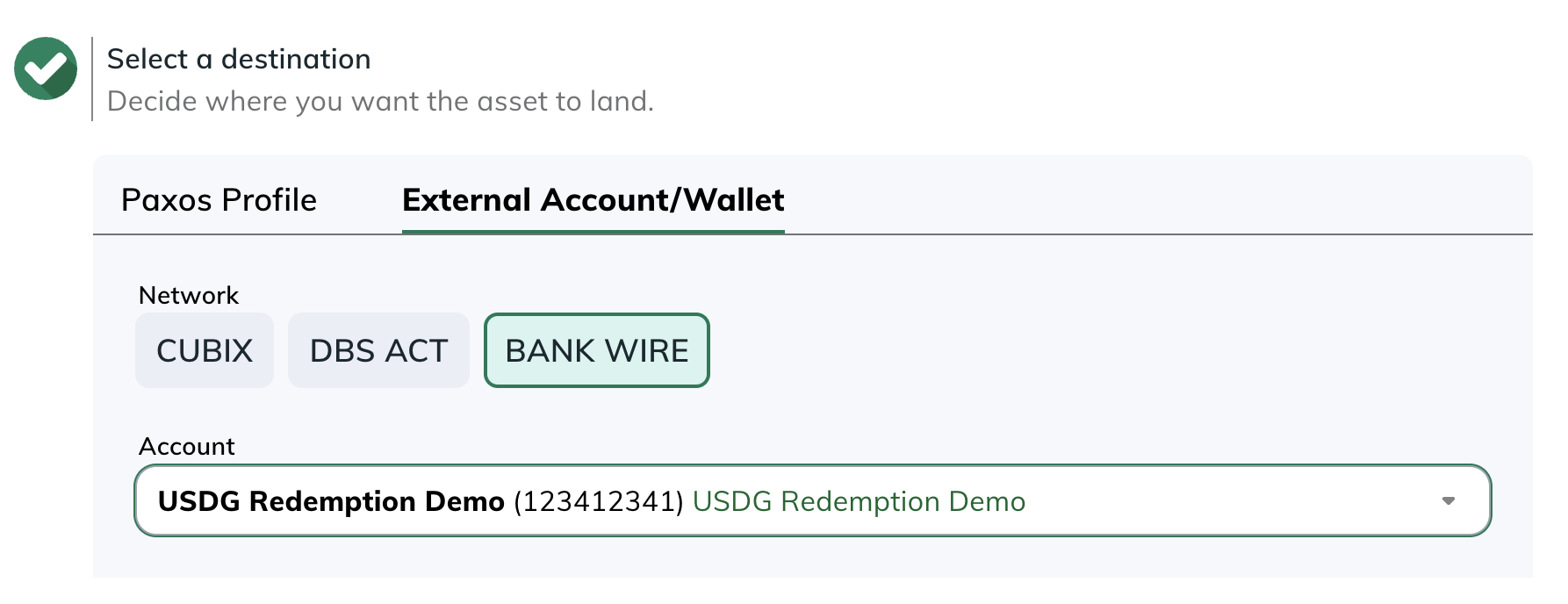
6. Go to [Transactions > Asset Movements](https://dashboard.paxos.com/dashboard/transactions/asset-movements) or [Transactions > Conversions](https://dashboard.paxos.com/dashboard/transactions/conversions) to monitor activity.
Need help?
Redemption options may vary based on your account or [Entity](/guides/dashboard/organization#entities) configuration. Reach out to your [Entity Manager](/guides/dashboard/roles#entity-manager) or [contact us](https://support.paxos.com/hc/en-us/requests/new) for support.